Connecting to Apple Ads
Catchbase connects to Apple Ads through Apple's OAuth flow. Once connected, Catchbase reads campaign, ad group, keyword, and performance data, and can make changes on your behalf for campaigns in the groups you activate. You complete this connection once per organization; individual campaign groups can be activated or deactivated later without repeating the OAuth step.
Before you start
- An Apple Ads account with at least one campaign.
- Admin access on the Apple Ads account. Apple requires an Apple Ads account administrator to grant the authorization. If you are not an administrator on the Apple Ads account, ask your Apple Ads admin to sign in and complete the authorization step.
- Catchbase Admin role is required to create the integration. Editors can read and update existing connections but cannot create new ones.
- Pop-ups must be allowed for Catchbase, because the authorization opens in a new window.
Steps
-
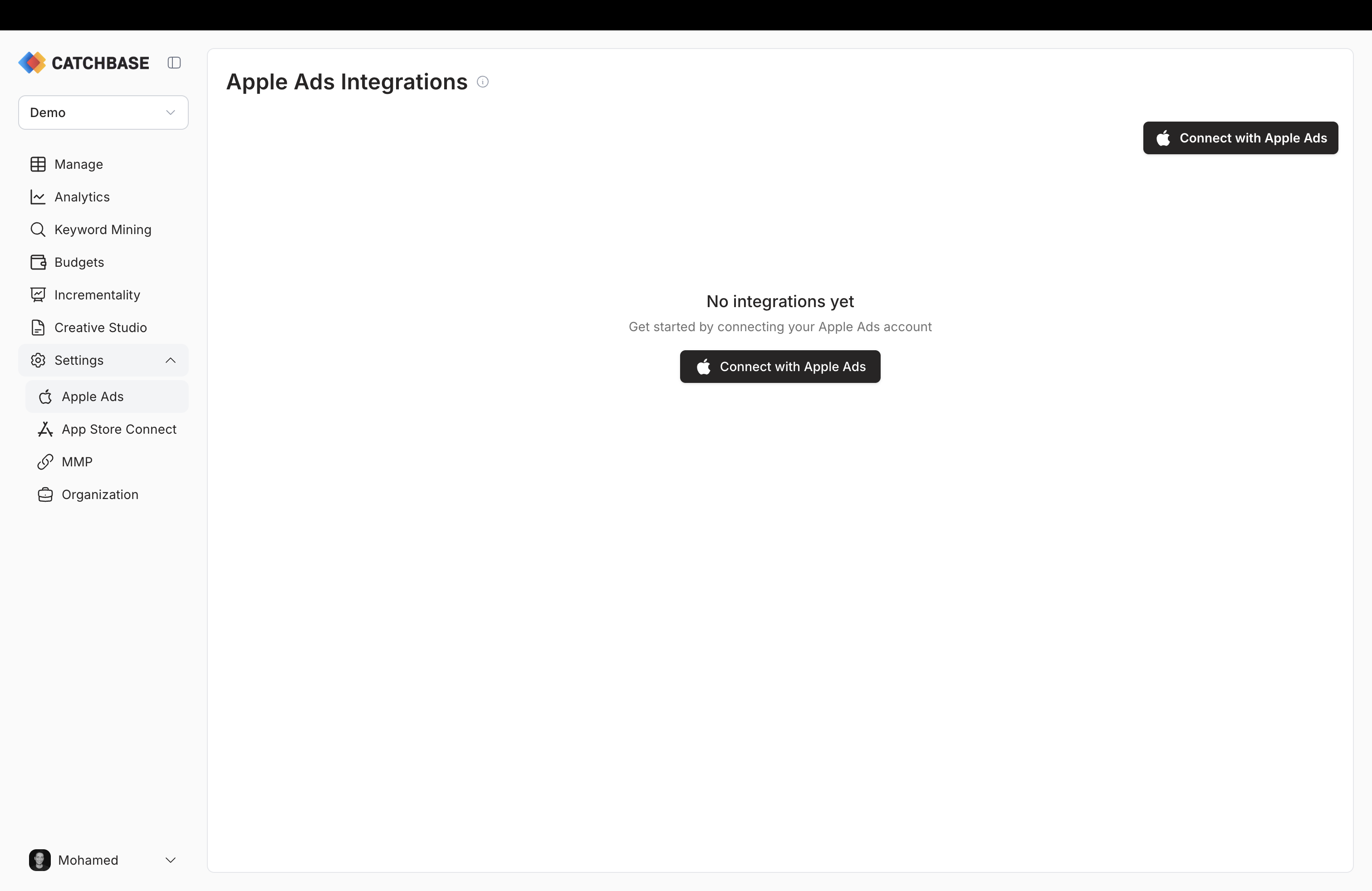
Sign in to Catchbase and go to Settings, Integrations, Apple Ads. You see the Apple Ads Integrations page. If this is your first connection, an empty state prompts you to connect.
-
Click Connect with Apple Ads at the top right of the page. Catchbase requests an authorization URL from Apple and opens it in a new tab.
-
In the Apple Ads window, sign in with your Apple ID if prompted. Review the access request. Catchbase asks for read and write access so it can pull campaign data and apply changes to campaigns you later choose to manage. Click the authorize action presented by Apple.
-
Apple redirects you back to Catchbase. The integration is created and your campaign groups load. A campaign group selection dialog appears listing the groups returned by Apple.
-
Select the campaign groups you want Catchbase to manage and confirm. Expected outcome: Catchbase activates the selected groups, starts data collection, and shows a success message. After a brief delay you are returned to the Apple Ads integrations list.
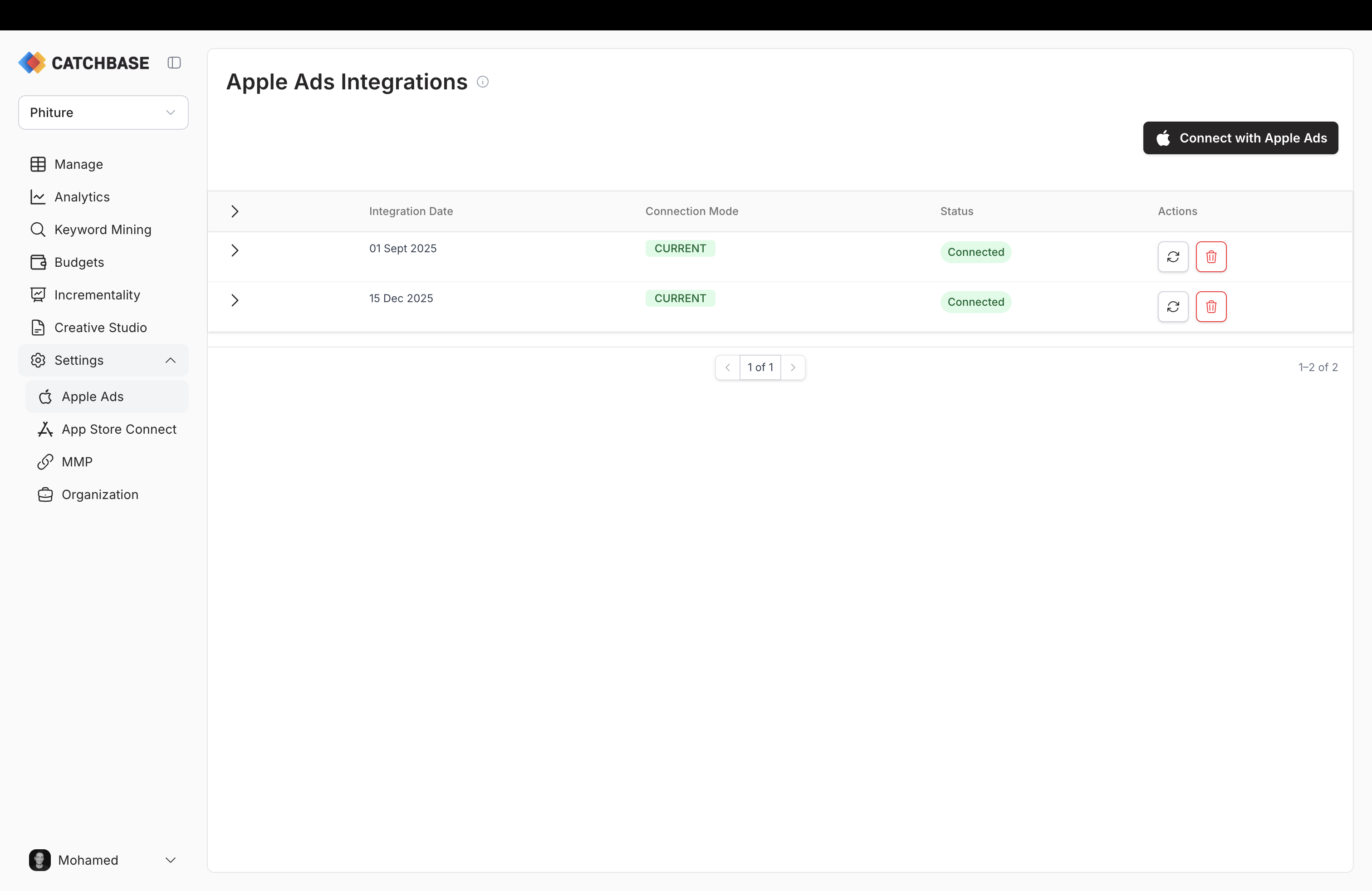
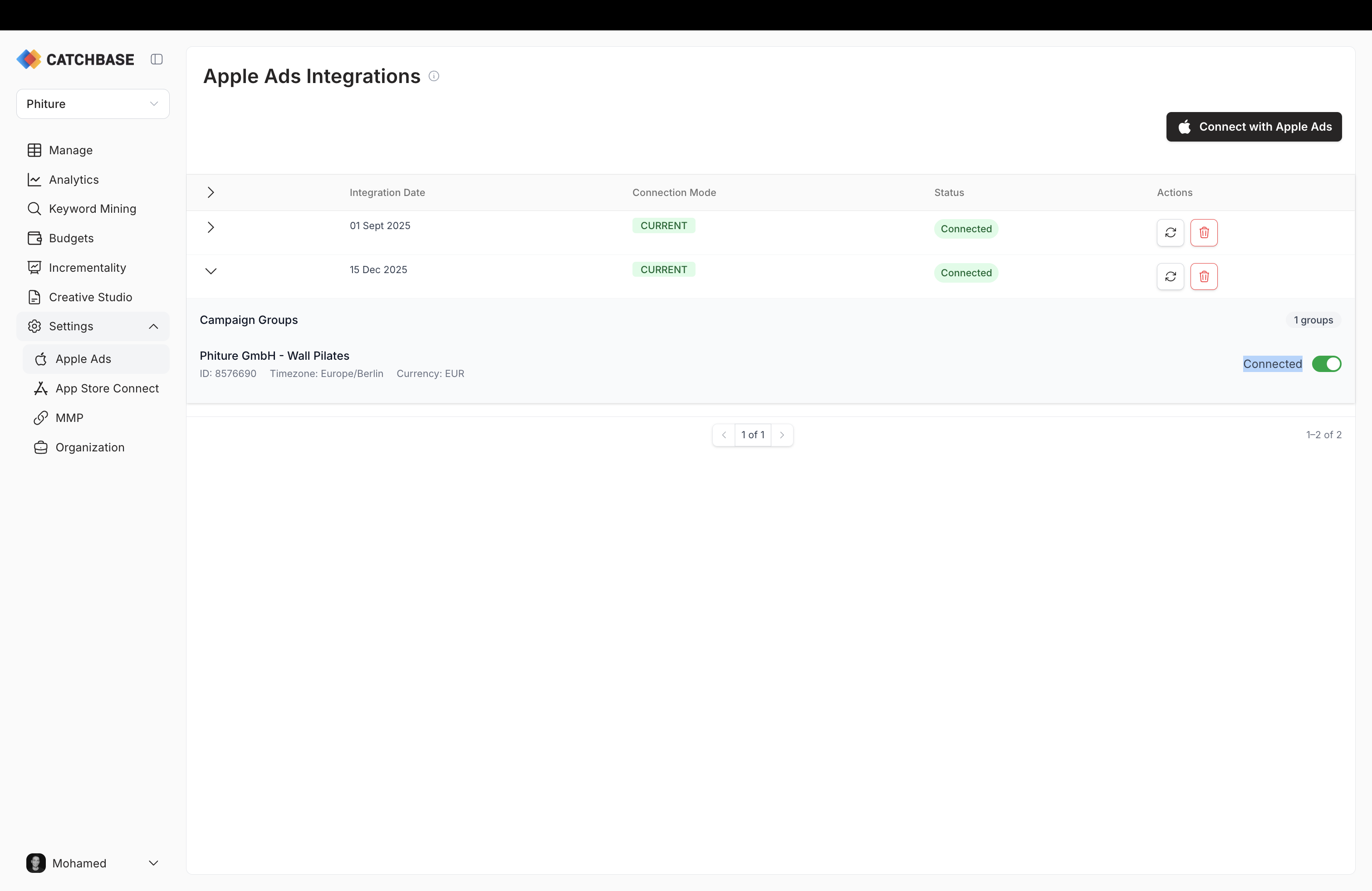
- On the integrations list, expand an integration row to see the campaign groups it contains. Use the toggle next to each group to activate or deactivate it. Deactivating a group stops Catchbase from managing its campaigns but keeps the integration in place.
Refreshing or disconnecting
-
To refresh a connection, use the refresh icon in the Actions column on the integrations list. Use this if Apple has flagged the connection or if you want to force a re-sync.
-
To reconnect after a token becomes invalid, click Reconnect on the affected row. Catchbase removes the invalid integration and starts a fresh OAuth flow.
-
To disconnect, use the delete icon on the row. Deleting the integration stops all Catchbase access to that Apple Ads account. You can reconnect later by repeating the OAuth flow.
Next steps
With Apple Ads connected, continue to connect your MMP and App Store Connect: