Quickstart
This page takes you from a new Catchbase account to a dashboard showing live campaign data. Follow the steps in order. Each step links to a deeper page if you need more detail. Plan on about five minutes of active work plus a short wait for data to sync after the Apple Ads connection completes.
Before you start
- An Apple Ads account with at least one campaign and admin access for the authorizing user.
- An MMP account (Adjust or AppsFlyer) with API credentials available.
- An App Store Connect account with permission to create API keys, if you plan to use features that depend on ASC data.
Steps
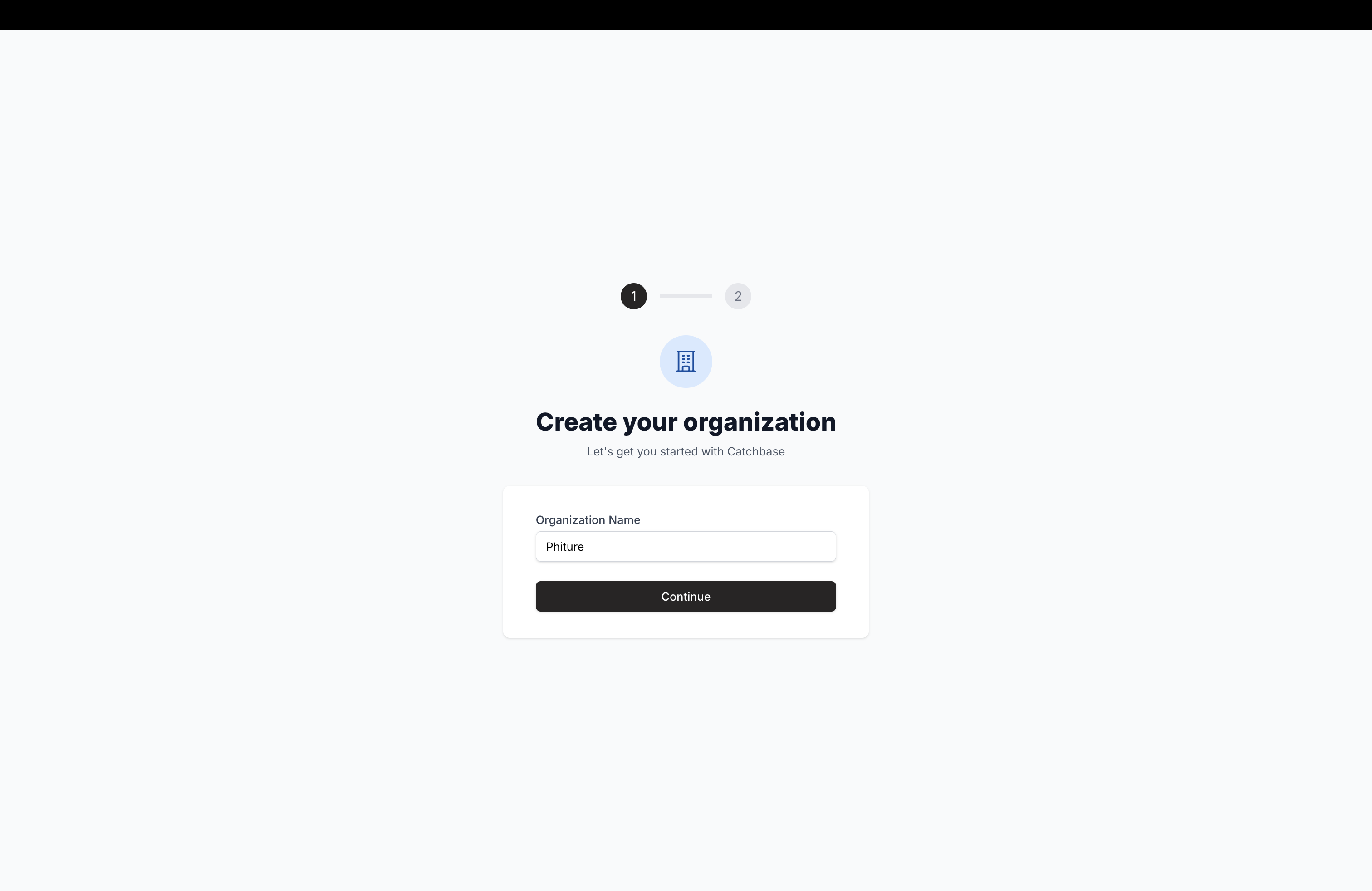
- Create your organization. Open Catchbase and sign in. On the setup screen, enter an organization name and click Continue. Expected outcome: the organization is created and you are taken to the trial confirmation screen.
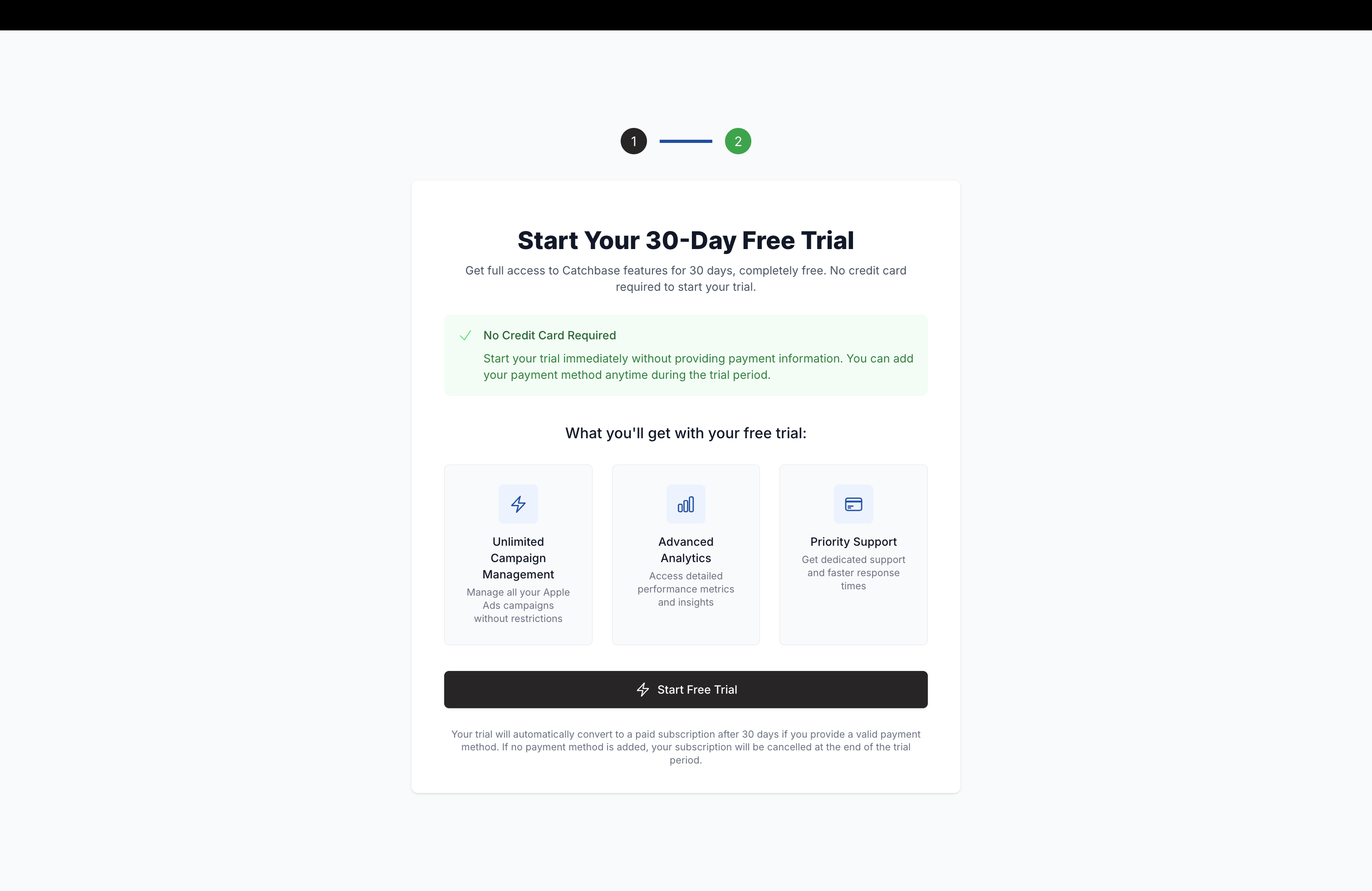
- Start your trial. On the trial screen, click Start Free Trial. You are redirected to Stripe Checkout. Complete the checkout flow, then return to Catchbase. Expected outcome: your subscription is active and the dashboard loads. See Organization setup if you need to invite teammates before continuing.
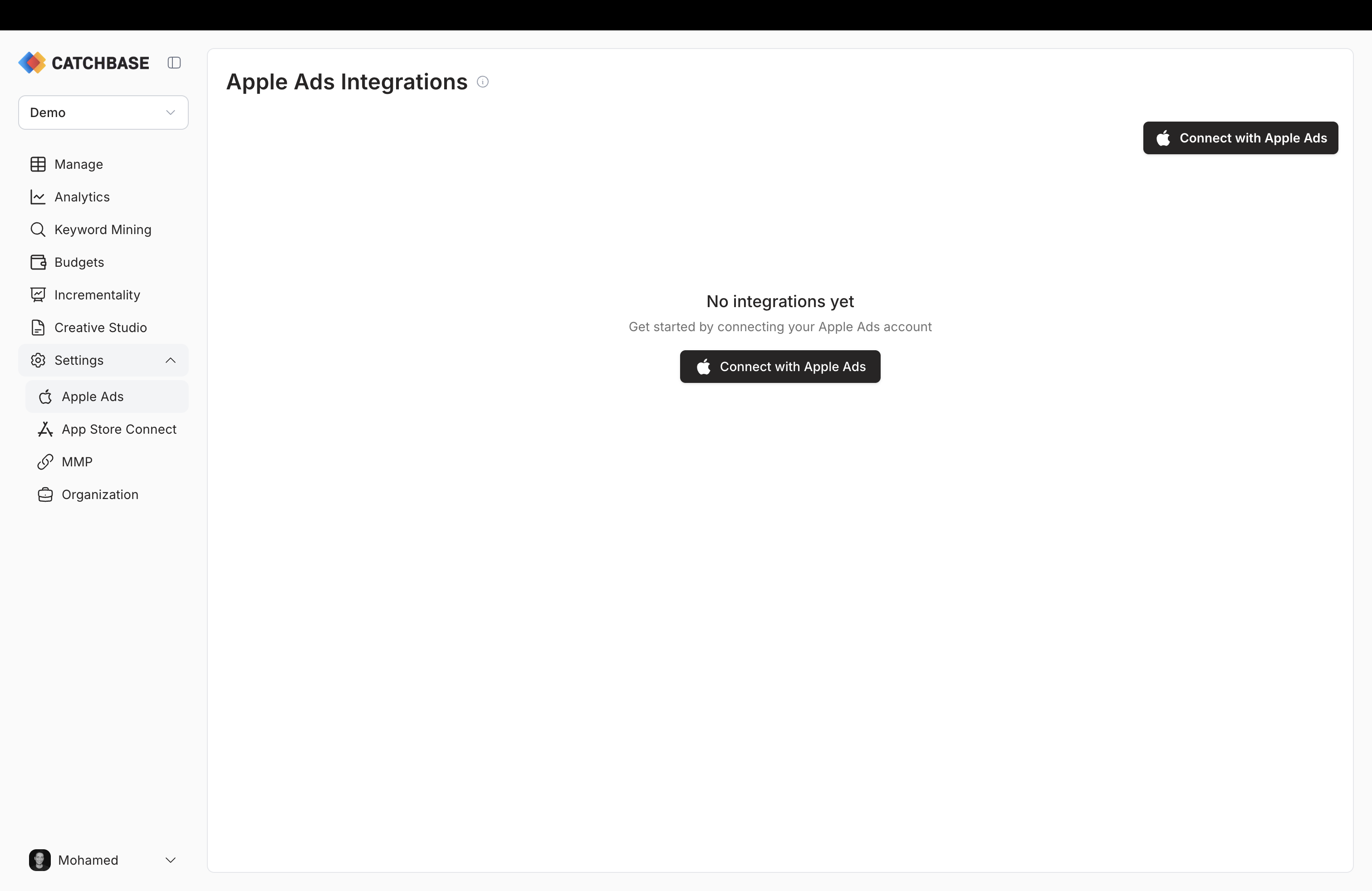
- Connect Apple Ads. Go to Settings, Integrations, Apple Ads, and click Connect with Apple Ads. Authorize Catchbase in the Apple Ads window that opens. Select the campaign groups you want Catchbase to manage. Expected outcome: your selected campaign groups appear as Connected on the integrations page and Catchbase starts pulling campaign data. Full walkthrough: Connecting to Apple Ads.
-
Connect your MMP. Go to Settings, Integrations, MMP. Choose Adjust or AppsFlyer and enter the credentials for your MMP account. Expected outcome: the MMP shows as connected, and install and revenue data will begin flowing alongside Apple Ads data. Detailed guidance per provider: Connect Adjust or Connect AppsFlyer.
-
Connect App Store Connect. Go to Settings, Integrations, App Store Connect and follow the key upload wizard. This is required for features that act on CPPs and some App Store metadata. Full walkthrough: App Store Connect.
-
Review your campaigns. Open the dashboard. Your campaign groups and campaigns appear as Apple Ads data syncs. Early numbers may be partial for the first few hours as sync catches up. For how campaigns are structured in Catchbase, see Campaigns overview.