Connect Adjust
Adjust is the mobile measurement partner (MMP) that tells Catchbase which installs and in-app events came from your Apple Ads taps. Connect Adjust so Catchbase can match MMP events to Apple Ads taps, surface cohorted revenue (D0, D7, D14, D30) in analytics, and drive revenue and custom-event objectives on campaigns.
Before you start
- Apple Ads integration connected in Catchbase.
- Admin role in Catchbase.
- Admin access to Adjust and an Adjust API token with permission to read reports and events for the app you will connect.
- The app and the events you want to track are already configured and actively reporting in Adjust.
Steps
- Open Integrations. In the sidebar, go to Settings, then Integrations, then MMP. The Mobile Measurement Partner Integrations page lists every MMP integration your organization has, or an empty state if this is your first.
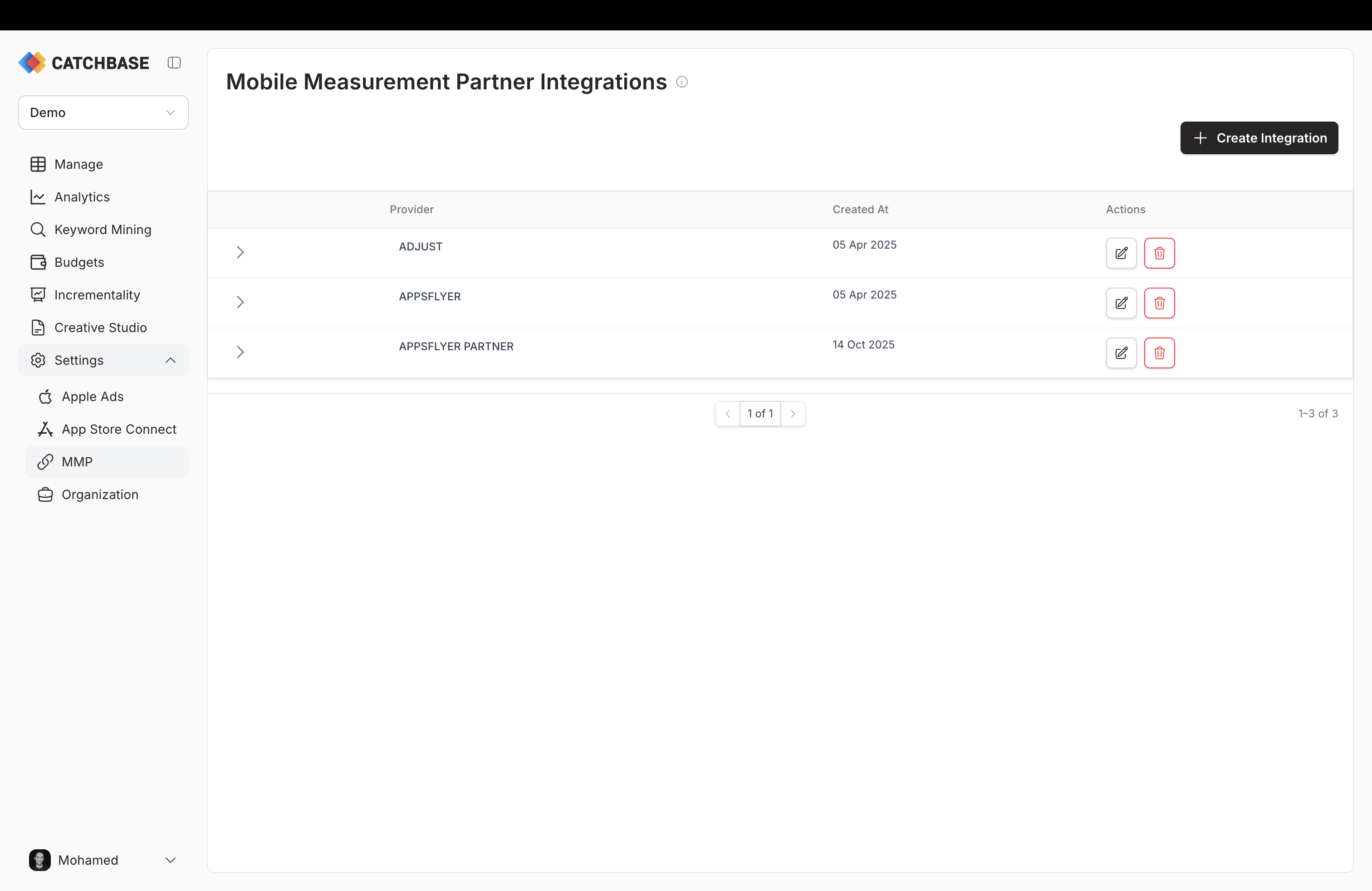
- Start a new integration. Click Create Integration. A provider picker appears. Select Adjust. If the picker shows Adjust as "Configured", you already have an Adjust integration and cannot add another.
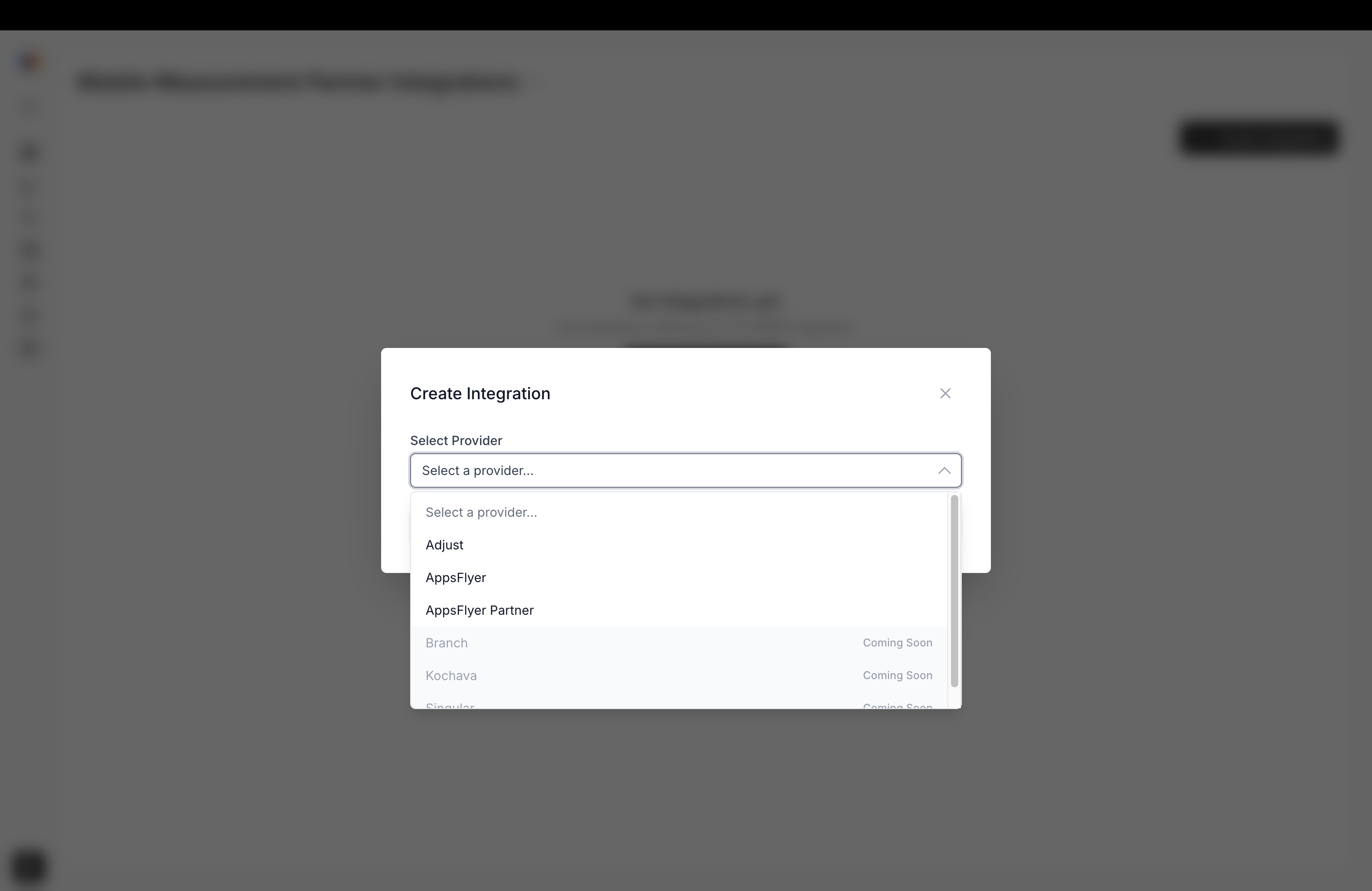
-
Read the provider info. The modal opens on the Provider Info step with a short description of the Adjust integration. Click Next to continue.
-
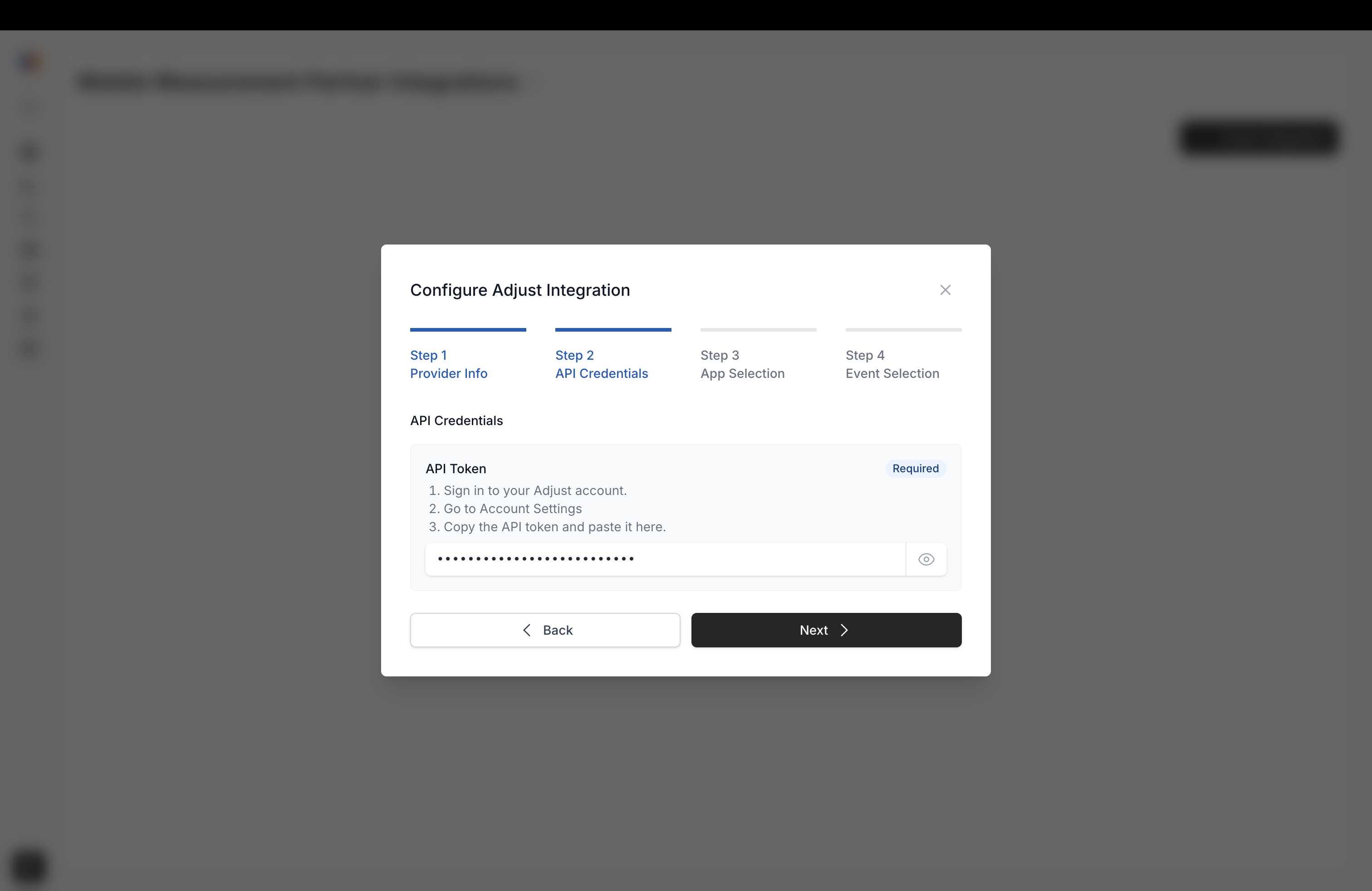
Enter your API token. On the API Credentials step, paste your Adjust API token into the single required field. The input is masked by default; use the eye icon to reveal it while pasting. This is the only credential Catchbase needs. Click Next.
-
Select the app. Catchbase calls Adjust with your token and lists the apps it can see. On the App Selection step, pick the app you want to connect. If the list is empty or you see an "Invalid API key" error, go back to the credentials step and check the token.
-
Select the events to track. On the Event Selection step, Catchbase shows every event Adjust has for the selected app. Pick each event you want Catchbase to pull in for analytics and for use as a campaign objective. You must select at least one event. Click Create Integration.
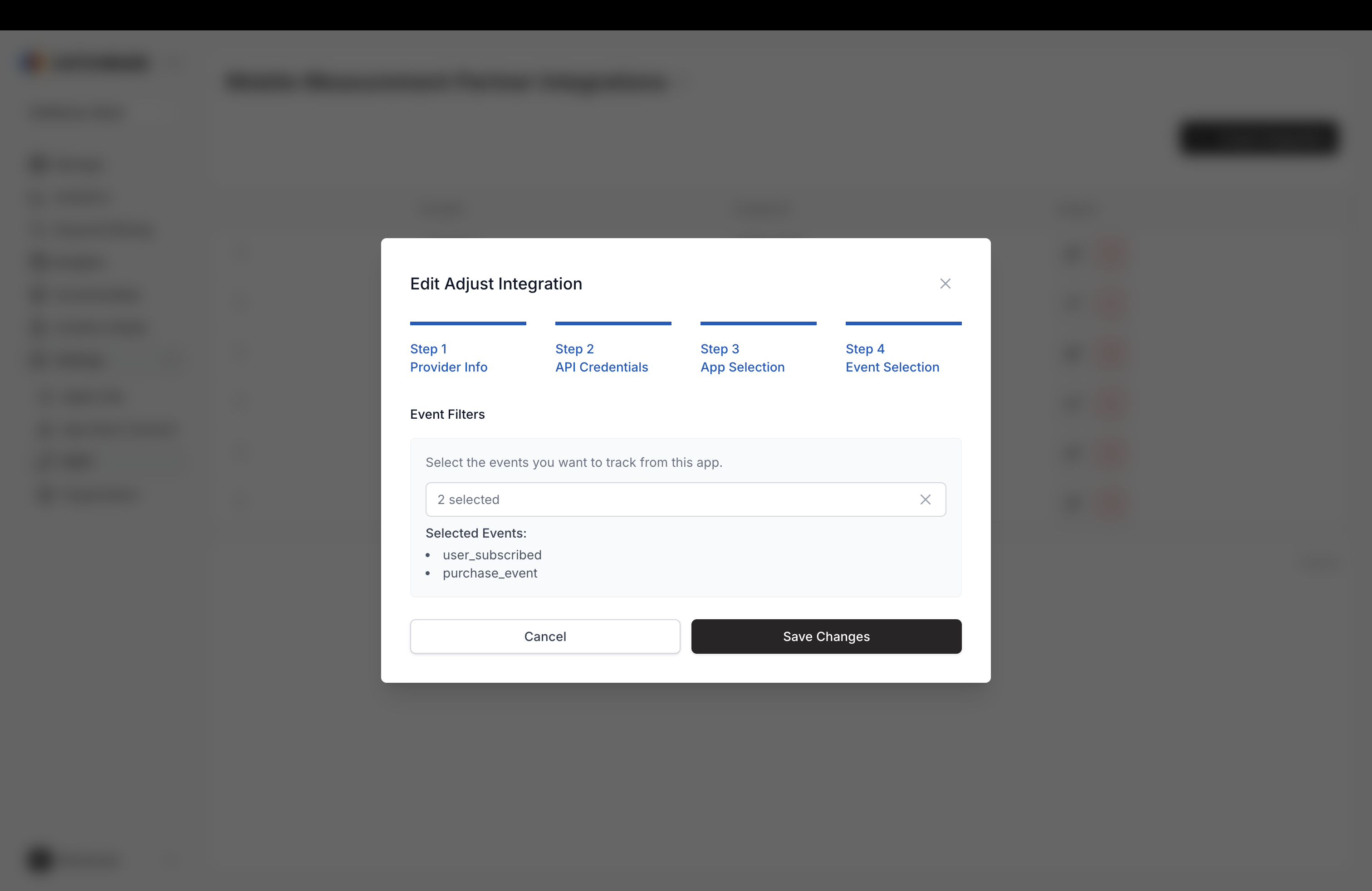
- Verify the connection. The new integration appears in the MMP list with today's date. Expand the row to review the stored connection details, filters, and custom events. A green toast confirms the save.
What data flows in
Once connected, Catchbase pulls two Adjust feeds on a daily cadence:
- Report data, grouped by install date, with cohorted revenue for D0, D7, D14, and D30 plus lifetime revenue.
- Event data for each event you selected, with per-event counts and event revenue.
These feed ROAS at D0 through D30, custom-event objectives, and the analytics dashboard. See Data sources overview for how Apple Ads, MMP, and ASC data combine.
First sync
Historical data begins loading when the integration is saved. Cohorted revenue windows (D7, D14, D30) trim the most recent N days until those cohorts mature, so full ROAS at D7 takes seven days after install to stabilise. See Revenue and cohorts.
Limits
- One Adjust integration per organization.
- Events must exist in Adjust before they appear in the picker. Add the event in Adjust first, then edit the integration in Catchbase to include it.