Keyword Mining
Keyword Mining finds relevant keywords for your apps across the markets you advertise in and surfaces them for review in a dedicated workspace. You use it when you want to expand a keyword list with terms that actually match what your app does, rather than accepting whatever Apple's automatic matching surfaces.
Before you start
- Apple Ads integration connected.
- At least one app with an active Apple Ads account in Catchbase.
- An App Store listing with a description that clearly explains what the app does. The scoring depends on this.
What Keyword Mining does
Keyword Mining is a discovery workspace. It reads your app's metadata, description, and category, builds a picture of what the app is for, and generates candidate keywords that reflect that purpose. Those candidates are expanded using local search trend data per market and scored for relevance to your app. The workspace shows the ranked keywords, popularity and trend data, and a parallel list of competing apps that rank for similar terms.
The workspace is organized as two views, reached by tab: Keyword Discovery lists the discovered keywords with their relevancy and popularity scores, and Competitors lists apps that share search terms with yours. A filter bar at the top selects the app and market you are looking at. A trends chart below the table plots popularity over time for up to five selected keywords.
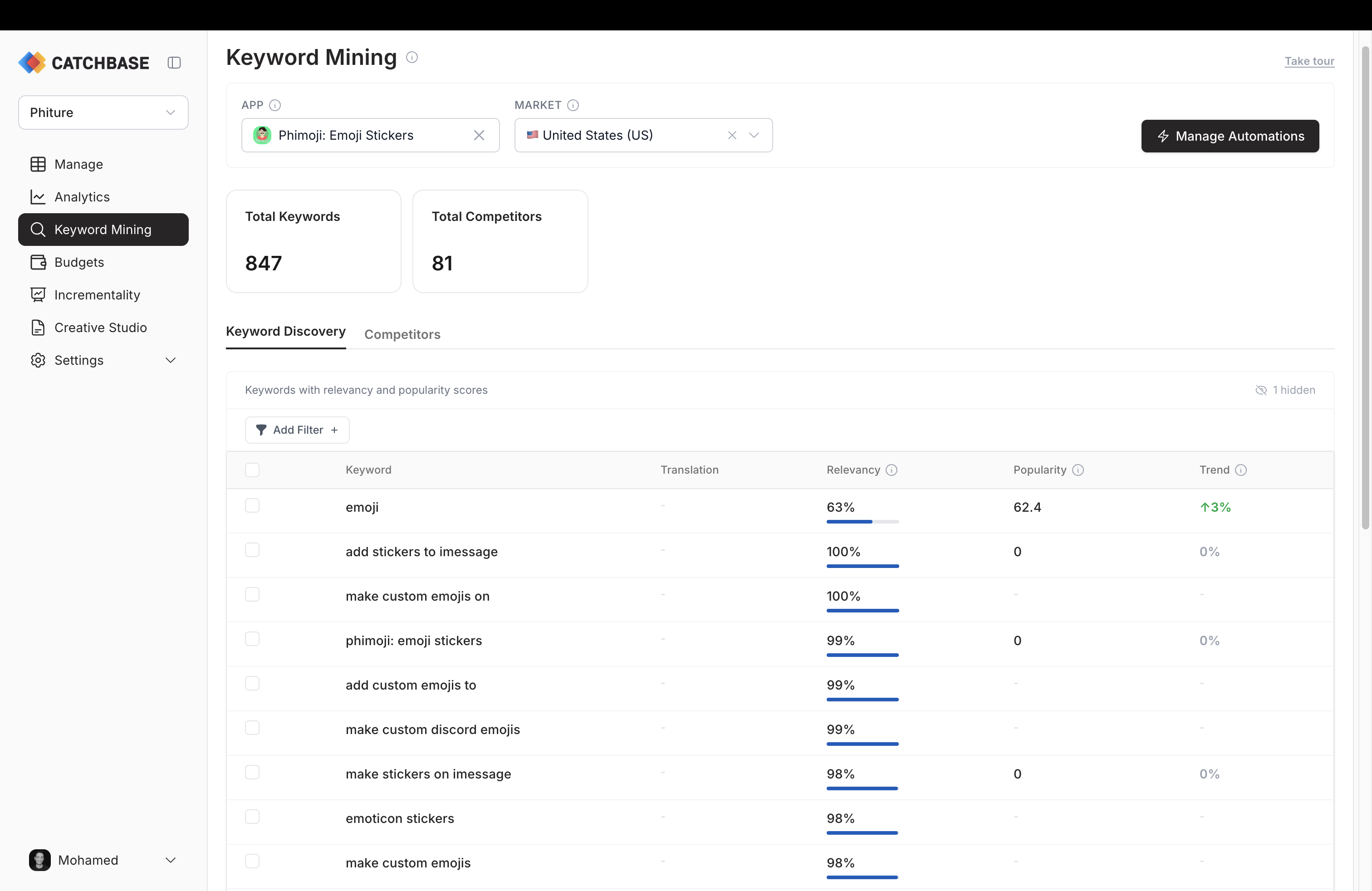
Metrics on the Keyword Discovery tab
Every row in the Keyword Discovery table carries a small set of metrics that together answer two questions: "how well does this keyword fit my app?" and "is this keyword worth bidding on?"
- Keyword. The candidate term itself, in the market's language.
- Translation. For keywords in a non-English market, the English translation shown alongside the original. Use it to sanity-check what the keyword means before you target it.
- Relevancy. A 0–100 score for how closely the keyword matches your app's purpose. Higher is better. This is where filtering by minimum threshold has the most effect. See Keyword scoring for how it is computed.
- Popularity. A 0–100 score for how much real search volume this keyword is attracting in the selected market. It is a relative index, not a raw search count, so the same keyword can sit at a different popularity in different markets.
- Trend. The short-term direction of popularity, shown as a percentage with an up or down arrow. Positive means the keyword is gaining searches; negative means it is losing them. Use the trend alongside popularity to spot keywords that are currently rising or cooling off.
- Short tail / Long tail. A label for how specific the keyword is. Short-tail keywords are broad ("photo editor"), long-tail keywords are narrow ("best photo editor for social media"). Short-tail keywords typically compete on cost; long-tail keywords typically compete on intent.
Above the table, two counters summarise the current view: Total Keywords (how many candidates the selected app and market currently produce) and Total Competitors (how many apps rank for overlapping terms).
A trends chart below the table plots popularity over time for up to five selected keywords, so you can see seasonality or a sustained rise before you decide to bid.
How it differs from Apple's Broad Match and Search Match
Apple's native tools expand your reach by matching searches that Apple considers related to your app, based on your category, metadata, and other signals Apple does not fully disclose. They are reactive: they surface searches only after your campaigns are running, and you have no preview of which searches will trigger your ad. For apps whose purpose does not fit their category cleanly, this tends to produce keywords that look related on the surface but are wrong in practice.
Keyword Mining flips this. It starts by understanding what your app actually does, then finds keywords that match that purpose regardless of which category Apple assigns. Relevance is measured against the app's specific purpose, not the category label, so you can filter and review keywords before any spend happens. Keywords you decide to use are then added to your Apple Ads campaigns, either manually from the table or automatically through a discovery automation.