Connect App Store Connect
The App Store Connect (ASC) integration gives Catchbase read access to your App Store Connect reports. Once connected, the platform can surface app analytics, sales and marketing data, and custom product pages (CPPs) alongside Apple Ads performance. Connect ASC after Apple Ads so campaign data and ASC data align on the same apps.
Before you start
- Apple Ads integration connected in Catchbase.
- Admin role in Catchbase.
- Admin access to your App Store Connect team. You will generate two API keys in App Store Connect and upload the second one to Catchbase.
- The apps you plan to connect are already present in your Catchbase organization (they appear there after Apple Ads is connected).
Steps
Onboarding is a four-step wizard. Progress is held only in the current session, so complete all four steps in one go.
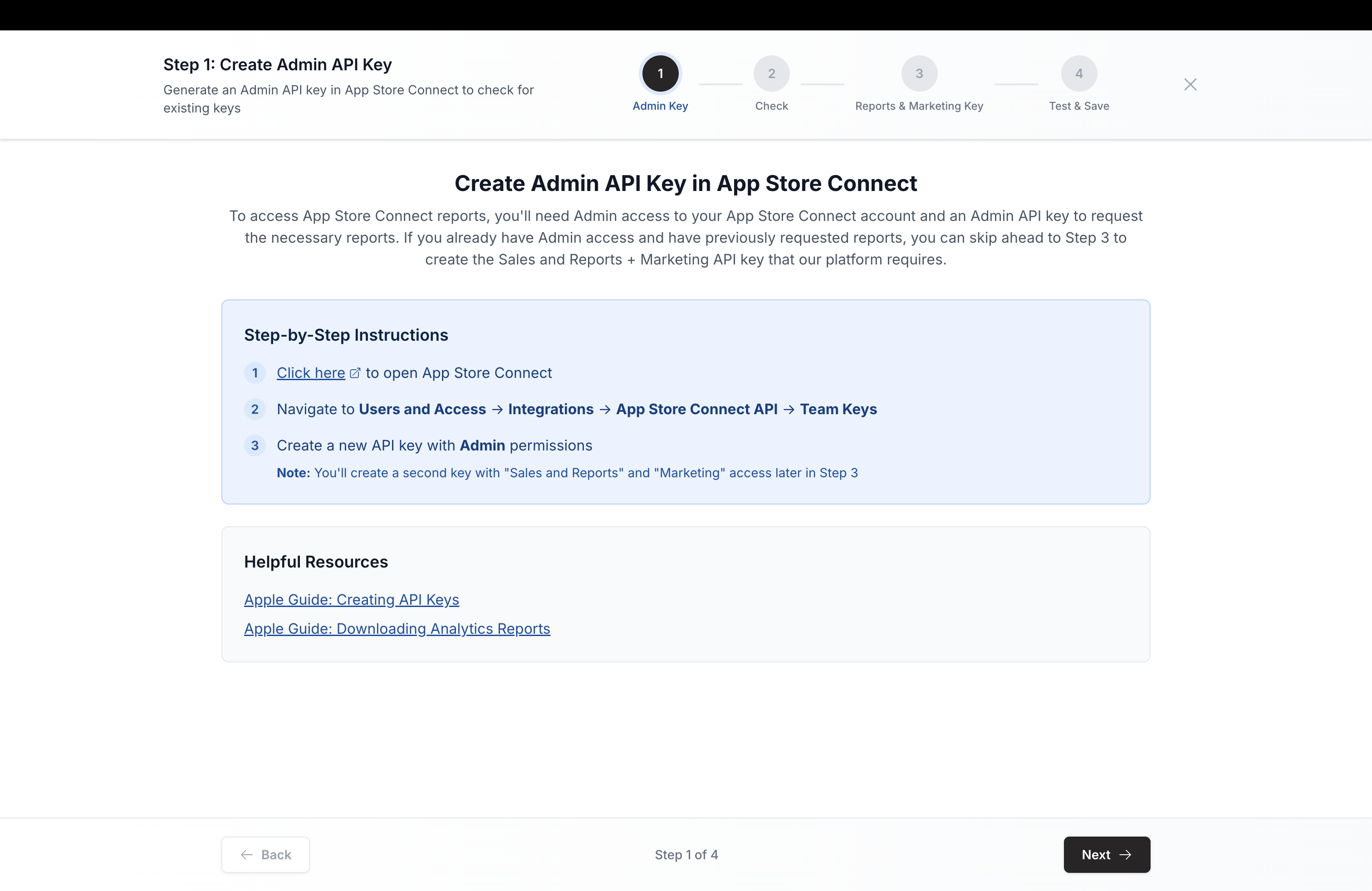
- Create the Admin API Key. On Step 1, follow the guided instructions to generate an Admin API Key in App Store Connect under Users and Access, then Integrations, then App Store Connect API, then Team Keys. The Admin key is only used to check for existing API access requests in the next step; Catchbase never stores it. If you already have Admin access and have previously requested reports, you can move ahead to Step 3. Click Next.
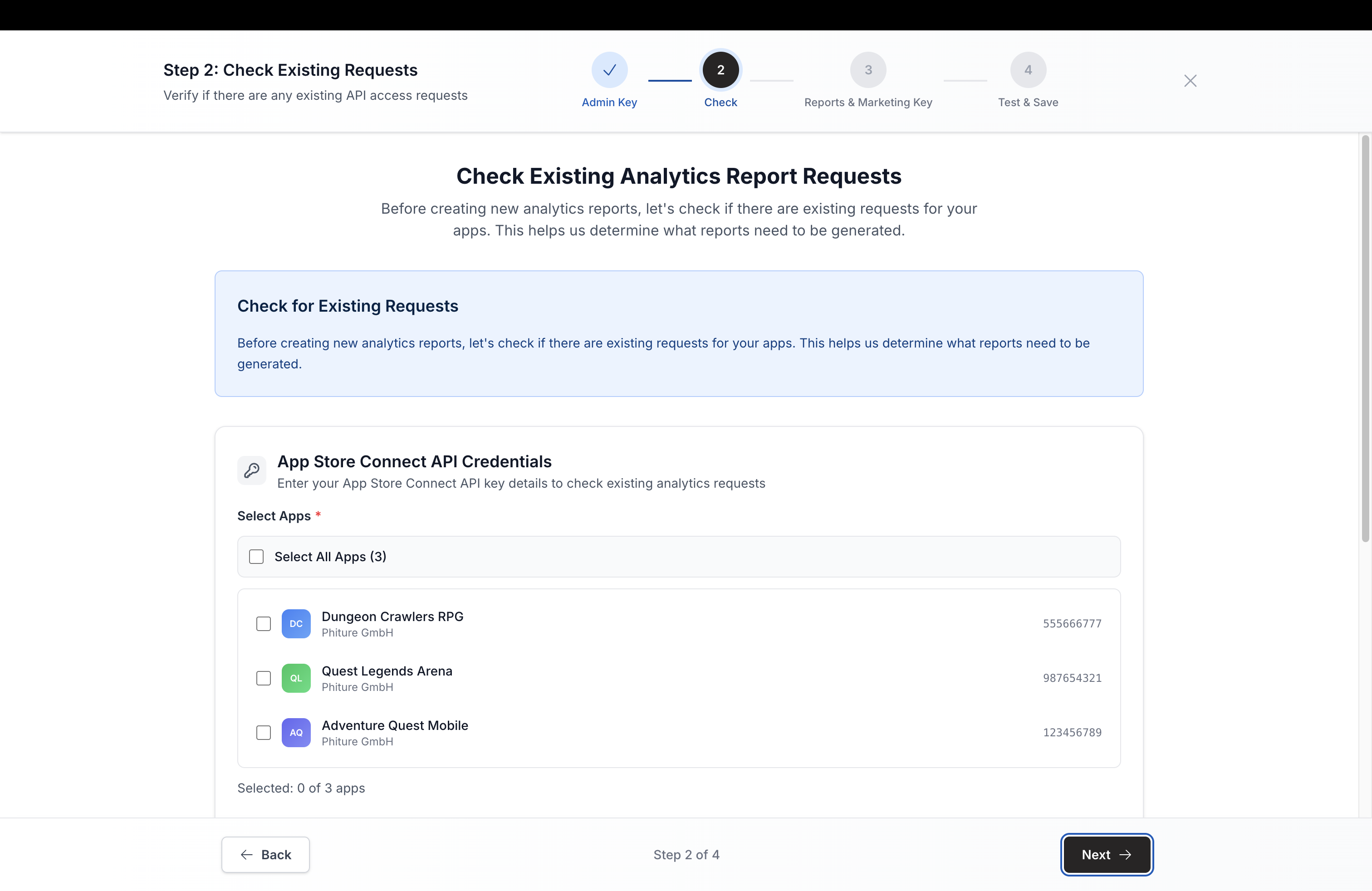
- Check existing access requests. On Step 2, Catchbase uses the Admin key you just generated to check whether your team already has the right report access requested. Enter the Admin key details on the form, run the check, and confirm the result. Click Next.
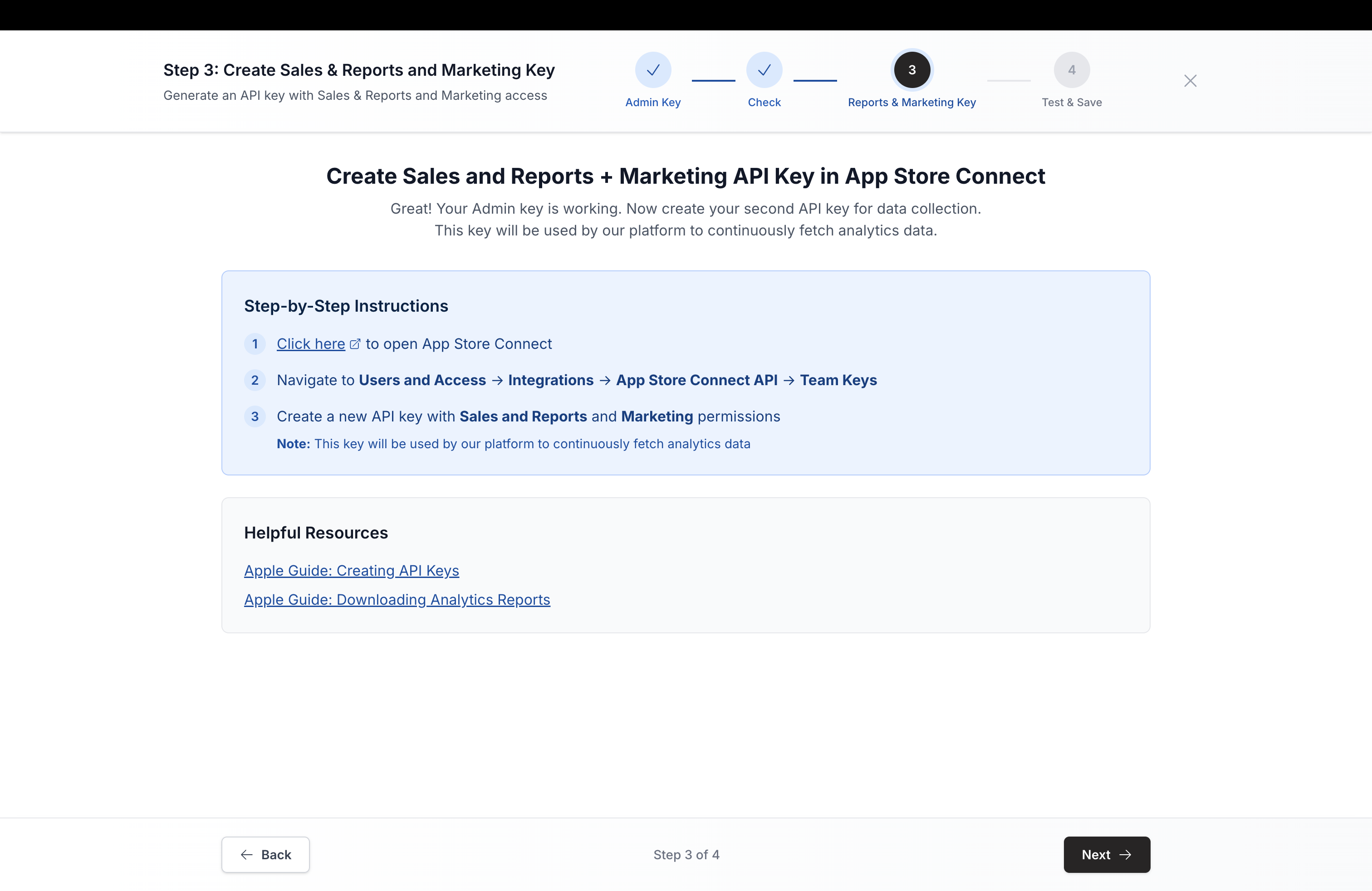
- Create the Sales and Reports + Marketing Key. On Step 3, generate a second API key in App Store Connect, this time with both Sales and Reports and Marketing permissions. This is the key Catchbase stores and uses to pull data on an ongoing basis. Download the
.p8private key file when App Store Connect prompts you; Apple only lets you download it once. Keep the Issuer ID and Key ID ready. Click Next.
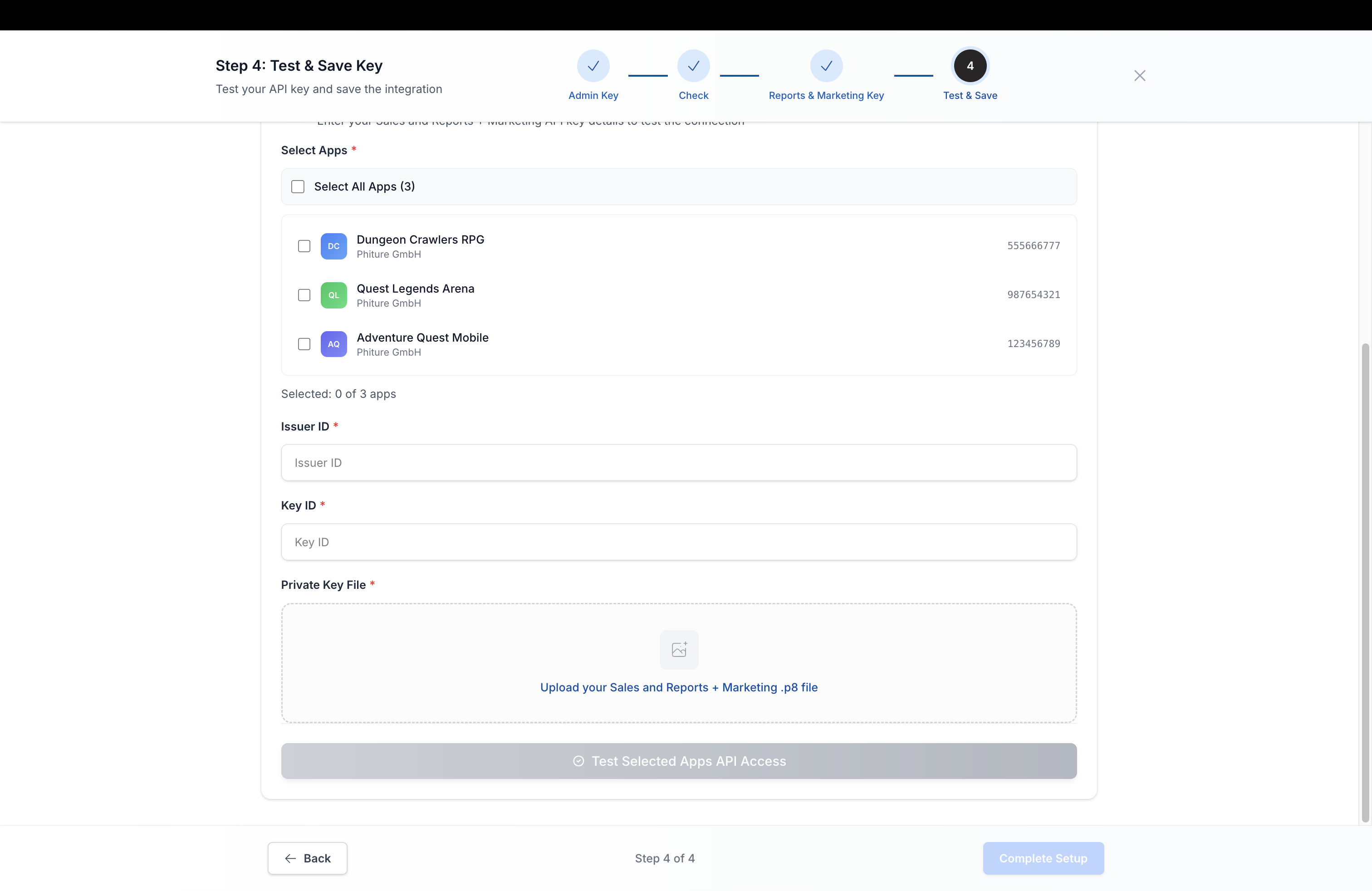
- Test & Save Key. On Step 4, enter the Issuer ID, Key ID, paste the contents of the
.p8file, and choose which apps in your Catchbase organization to bind the key to. A Select All checkbox at the top of the app list covers every app the ASC account can see; otherwise tick individual apps. Click Test Key to verify that Catchbase can read each selected app with the credentials. Results show per app with an aggregate pass / fail summary, so you can see exactly which apps are rejected if the test fails for a subset. The Complete Setup button activates only when every selected app passes. Click it to save.
On success, the wizard shows a confirmation toast and returns you to the ASC integration page, where your stored key now appears in the keys list.
After setup
The stored key is used by Catchbase to pull App Store Connect reports for the bound apps. If you add a new app to the organization later, return to this onboarding flow and save a key covering that app, or update the existing key's app list.
To rotate the key, generate a new one in App Store Connect, re-run the onboarding, and then remove the old key from the Catchbase ASC list.
Limits
- ASC keys are bound to a fixed list of apps at save time. You can change the app list from the ASC integration page using the Update AppIds action on a saved key; the Issuer ID, Key ID, and private key contents are not editable once saved. To rotate those, create a new key and delete the old one.
- Wizard progress is lost on page refresh. Plan to complete the wizard in one sitting; if you step away, you will start over.